Comprehensive Guide to Using GoToMeeting for Remote Team Collaboration in 2026

In this article

Comprehensive Guide to Using GoToMeeting for Remote Team Collaboration in 2026
GoToMeeting is a professional web conferencing software designed to facilitate online meetings, video presentations, and collaborative sessions. In the current landscape of 2026, where remote work is a standard practice, understanding how GoToMeeting functions is essential for maintaining professional connectivity. The platform operates by allowing a host to create a virtual meeting room, which participants can join via a unique link or meeting ID. This technology enables real-time audio and video communication across different geographical locations, bridging the gap between distributed team members.
The relevance of GoToMeeting lies in its ability to provide a stable environment for high-stakes interactions, such as client pitches, formal board meetings, and large-scale webinars. While traditional messaging apps handle quick text updates, GoToMeeting focuses on synchronous communication where visual cues and screen sharing are necessary for clarity. By centralizing these tools, the platform helps organizations reduce travel costs and minimize the logistical challenges associated with physical gatherings.
Core Features and Functionality of GoToMeeting
To maximize the utility of GoToMeeting, users should be familiar with its primary technical features. The software integrates high-definition video conferencing with robust audio options, including VoIP and toll-free phone numbers. One of the most critical aspects of GoToMeeting is its screen-sharing capability, which allows presenters to display their entire desktop or specific applications to all participants. This is particularly useful for software demonstrations, document reviews, and collaborative brainstorming sessions.
Security remains a priority within the GoToMeeting architecture. The platform employs end-to-end encryption and password protection for individual sessions to ensure that sensitive corporate data remains private. Additionally, GoToMeeting includes a recording feature, which captures both audio and visual elements of a session. These recordings are stored in the cloud, providing a reliable reference for team members who were unable to attend the live event or for archival purposes.
Enhancing Team Presence with Hurbly and GoToMeeting
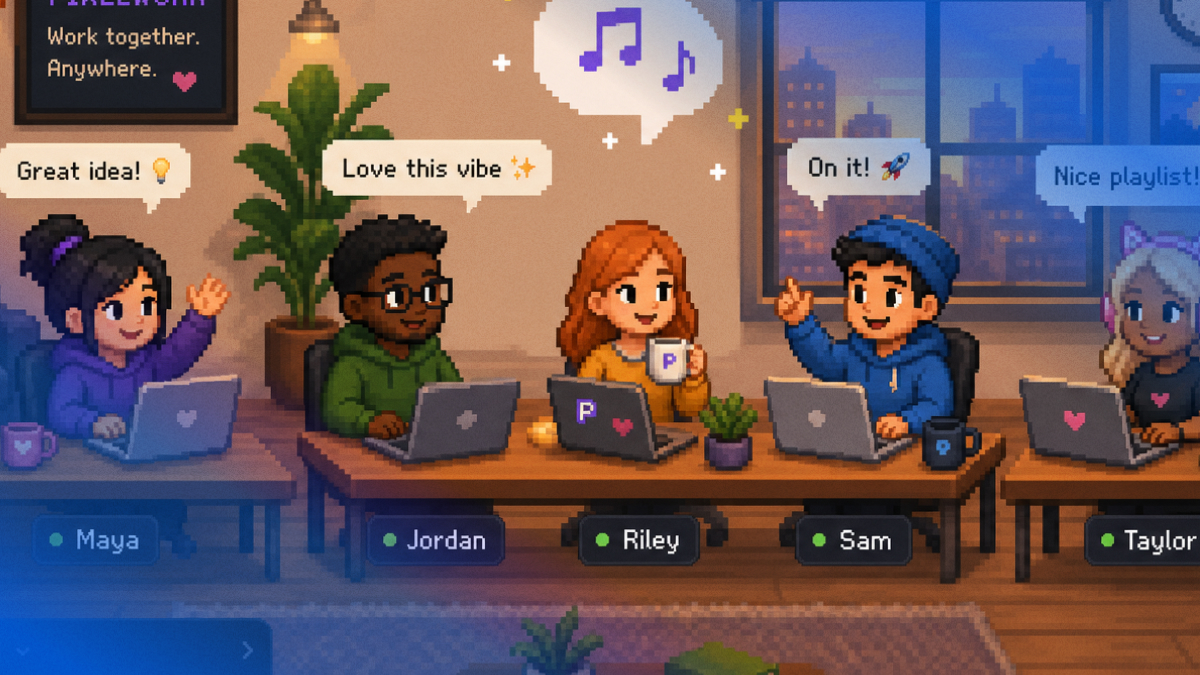
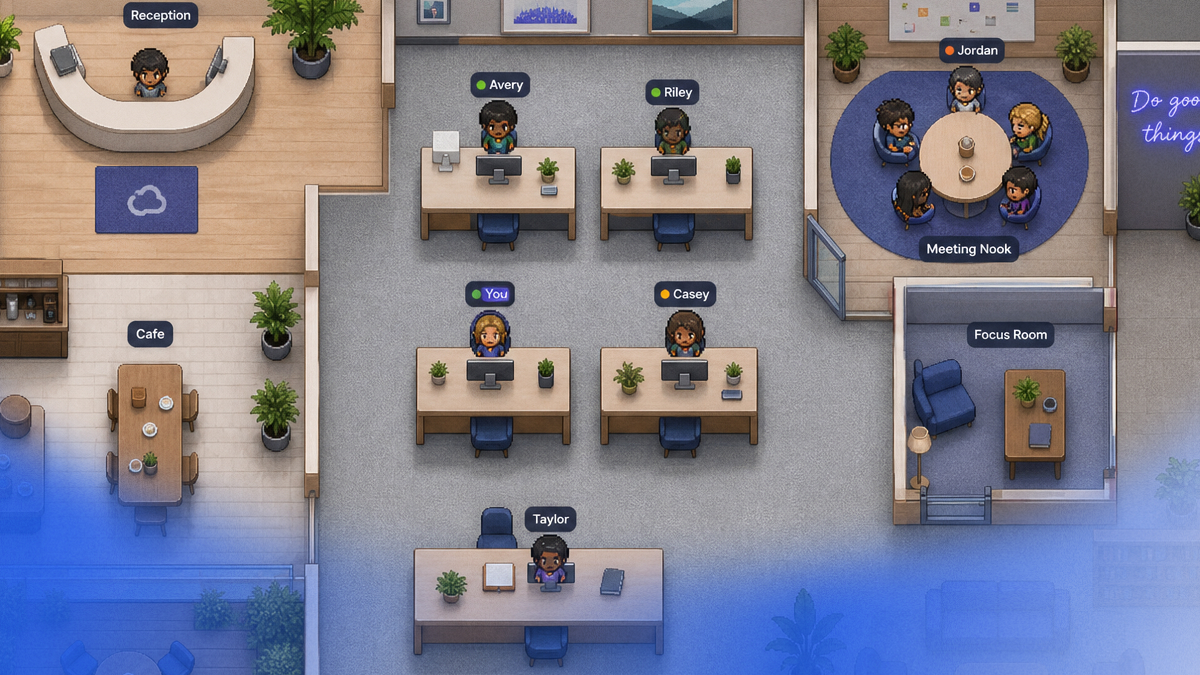
While GoToMeeting is excellent for scheduled, formal interactions, modern teams often require a more fluid way to manage daily availability. This is where Hurbly.ai complements the workflow. While you use GoToMeeting for your deep-dive sessions and presentations, a virtual office platform helps show who is currently active, focused, or already occupied in a call. This visibility prevents the "meeting fatigue" often associated with over-scheduling, as colleagues can see your status before attempting to initiate a GoToMeeting session.
Integrating a sense of presence alongside tools like GoToMeeting creates a more holistic remote work environment. For instance, if a manager sees a "focused" status on a presence board, they might delay starting a GoToMeeting until the employee is available. This combination of spontaneous visibility and structured conferencing ensures that communication is both efficient and respectful of individual deep-work cycles.
Step-by-Step Process for Hosting a GoToMeeting Session
Starting a professional video conference requires a few logical steps to ensure technical stability and participant engagement. Following a structured process helps avoid common delays associated with software updates or hardware misconfigurations.
- Schedule the Event: Use the GoToMeeting dashboard to select a date and time. You can set recurring meetings for weekly syncs or one-time sessions for specific projects.
- Distribute Invitations: Once the session is created, GoToMeeting generates an invitation containing the link, meeting ID, and dial-in numbers. Send this to participants via email or calendar invites.
- Configure Hardware: Before the start time, test your microphone, camera, and speakers within the GoToMeeting settings to ensure everything is functioning correctly.
- Launch the Meeting: As the host, click "Start." You will have access to moderator controls, such as muting participants or handing over the presenter role.
- Record and Follow Up: If the information discussed is vital, trigger the GoToMeeting recording feature. After the session, distribute the link to the recording and any shared documents.
Comparing GoToMeeting Communication Styles
Different types of professional interactions require different approaches within the GoToMeeting environment. Understanding these distinctions helps in choosing the right settings for each call.
| Feature | Standard GoToMeeting | GoToMeeting Webinar |
|---|---|---|
| Participant Limit | Usually up to 250 users | Can accommodate thousands |
| Interaction | Full bidirectional audio/video | Primarily one-way with Q&A |
| Best Use Case | Team collaboration and syncs | Large presentations and training |
| Moderation | Shared control options | Strict host-controlled environment |
By selecting the appropriate mode, a GoToMeeting host can ensure the platform's resources are optimized for the specific goals of the gathering, whether it is a small creative workshop or a massive company-wide announcement.
Best Practices for Effective GoToMeeting Management
To maintain high levels of productivity during a GoToMeeting, certain protocols should be observed. Preparation is the most significant factor in a successful online interaction. Hosts should always prepare an agenda beforehand and share it within the GoToMeeting chat or invitation. This keeps the conversation focused and ensures that all necessary topics are covered within the allotted time frame.
Furthermore, managing the digital environment is crucial. Participants should be encouraged to use the "raise hand" feature in GoToMeeting to avoid talking over one another, which can be a common issue in high-latency connections. Utilizing the built-in drawing tools during a GoToMeeting screen share can also help highlight specific data points on a slide, making the information more accessible to visual learners. Finally, always conclude a GoToMeeting with a summary of action items to ensure accountability among the team.