Managing Digital Distractions: A Guide on How to Turn Off Notifications
In this article

Managing Digital Distractions: A Guide on How to Turn Off Notifications
In 2026, the digital workspace has become more integrated than ever, leading to a constant stream of alerts that can disrupt deep work. Understanding how to turn off notifications is essential for maintaining focus and productivity. When your computer or smartphone constantly pings with updates, it breaks your cognitive flow, making it harder to return to complex tasks. By learning how to turn off notifications effectively, you reclaim control over your attention and create a more sustainable working environment.
Modern operating systems provide centralized hubs to manage these interruptions. Whether you are using a desktop or a mobile device, the process of how to turn off notifications usually involves navigating to the system settings and selecting the "Notifications" or "Focus" menu. From there, you can choose to silence all alerts or customize which specific applications are allowed to communicate with you during work hours.
Step-by-Step Process for System-Wide Silence
To achieve a distraction-free environment, you must know how to turn off notifications at the system level. This ensures that no background application bypasses your focus settings. On most modern computers, you can access the "Do Not Disturb" or "Focus" mode via the taskbar or system tray. This is often the quickest way for users wondering how to turn off notifications without digging through deep menu layers.
- Open your System Settings or Control Panel.
- Locate the "Notifications & Actions" section.
- Toggle the global switch to "Off" to silence all incoming alerts immediately.
- Alternatively, set up a schedule so the system knows how to turn off notifications automatically during your peak productivity hours.
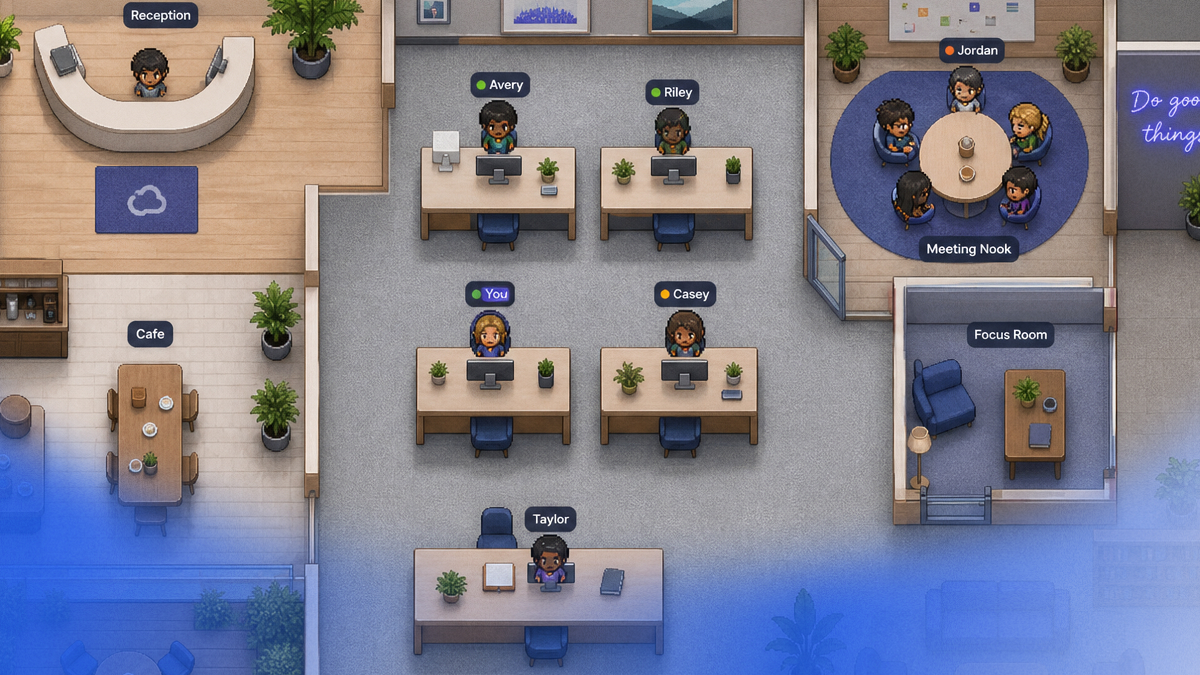
For those working in collaborative environments like Hurbly.ai, managing these settings is vital. While the platform allows for spontaneous interaction and real-time presence, knowing how to turn off notifications for other non-essential apps ensures that your "Focused" status on the virtual office map is respected and undisturbed by external digital noise.
Customizing Alerts for Specific Applications
Sometimes, you don't want to silence everything; you may only need to know how to turn off notifications for high-volume apps like social media or news feeds. Most applications have internal settings that allow for granular control. By mastering how to turn off notifications for specific tools, you can keep essential communication channels open while blocking irrelevant updates that do not contribute to your current objectives.
| Notification Type | Impact on Productivity | Recommended Action |
|---|---|---|
| Social Media | High Distraction | Use settings to learn how to turn off notifications entirely. |
| Email Alerts | Medium Distraction | Disable "banners" and use batch checking instead. |
| System Updates | Low Distraction | Schedule these for non-working hours. |
| Virtual Office (Hurbly) | Low (Presence-based) | Keep active to maintain team visibility and connection. |
Learning how to turn off notifications for individual browsers is also a key step. Websites often ask for permission to send push alerts, which can become intrusive. You can manage these permissions in the "Privacy and Security" tab of your browser settings, where you will find options on how to turn off notifications for specific URLs or block all requests by default.
Improving Team Presence Without Constant Alerts
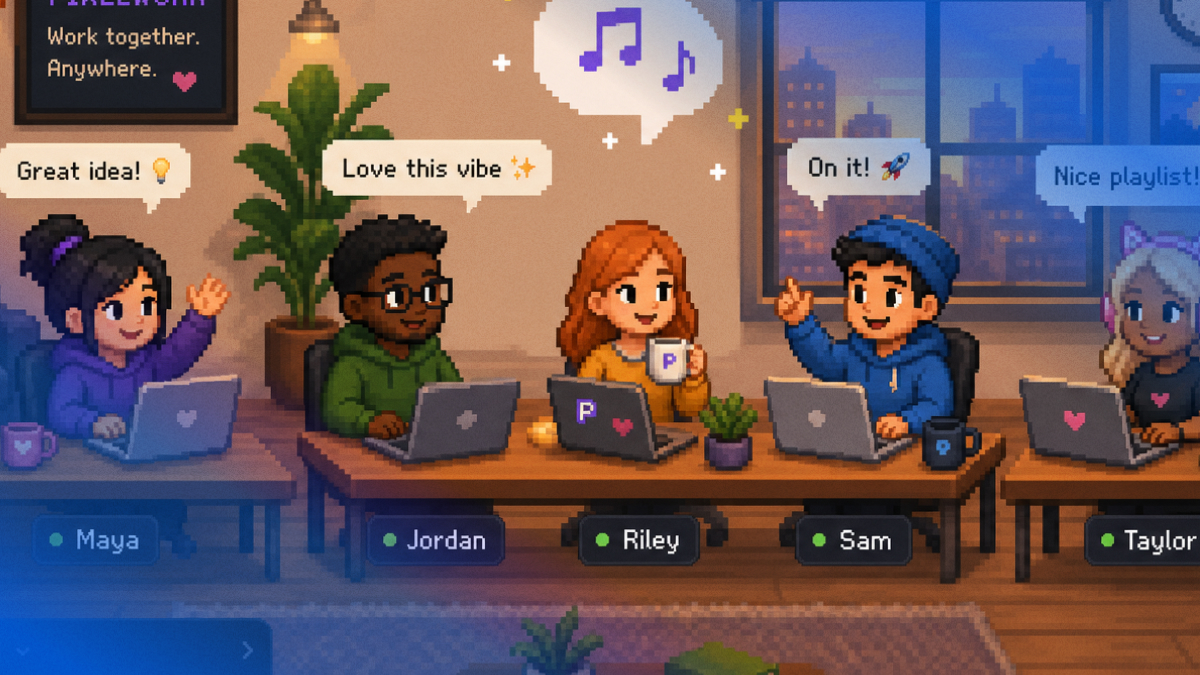
A common concern for remote teams is that if they learn how to turn off notifications, they might become isolated or miss important updates. This is where presence-based tools like Hurbly.ai change the dynamic. Instead of relying on loud pings and intrusive pop-ups, these platforms use visual indicators to show availability. When you understand how to turn off notifications for noisy messaging apps, you can rely on a visual office map to see who is available for a quick chat.
This shift from "interruption-based" communication to "presence-based" communication reduces the need to constantly check how to turn off notifications for every new tool you install. In a virtual office, your status (Available, Focused, or In a Meeting) communicates your boundaries to the team. This transparency means fewer people will "ping" you unnecessarily, effectively reducing the manual effort required to manage how to turn off notifications throughout the day.
Maintaining Focus in a Distributed Work Environment
The psychological benefit of knowing how to turn off notifications cannot be overstated. Constant alerts trigger a stress response that keeps the brain in a state of high alert, which is detrimental to creative and analytical thinking. By implementing a strict policy on how to turn off notifications during deep work sessions, you allow your brain to enter a "flow state" where productivity peaks.
To maintain this environment, consider the following strategies:
- Set specific "No-Notification" blocks in your calendar.
- Communicate to your team that you are learning how to turn off notifications for certain hours to finish a project.
- Use Hurbly.ai to signal your "Focused" status so coworkers know not to initiate spontaneous calls.
- Review your mobile device settings to ensure you know how to turn off notifications for apps that sync across your desktop.
Ultimately, the goal of discovering how to turn off notifications is to ensure technology serves your needs rather than dictating your schedule. By combining system settings, application-specific controls, and presence-aware platforms, you create a professional ecosystem that balances accessibility with the need for uninterrupted concentration.